
Switching
Moving to Cleaning Operator.
From a diary, WhatsApp and a spreadsheet, or from another system. These are the real steps, in order, with your own customers and services.
14-day free trial on every plan. Cancel anytime, no lock-in contract.

Seven steps
The sequence, as it is in the product.
Each step names the screen it happens on. Nothing here is a promise about time or an onboarding service; it is the order the office works through.
01
Start the trial
Pick a plan and sign up. Everything below happens inside your own account, with your own services and customers, so what you set up on the trial is what you run with.
- Professional, Business, Enterprise
- 14-day free trial on every plan. Cancel anytime, no lock-in contract.
02
Run the setup wizard
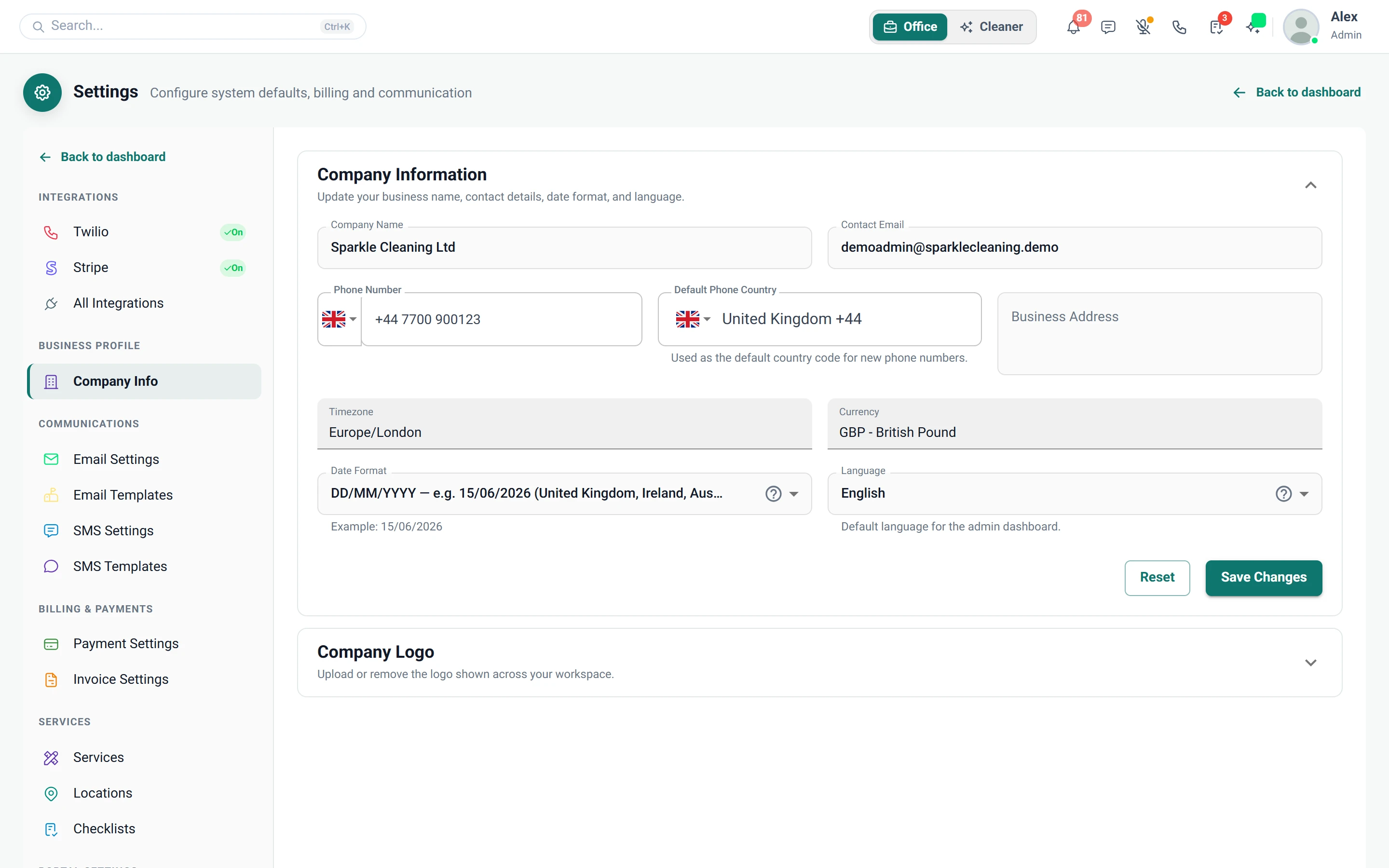
Day one starts with services and cleaners ready, not a blank dashboard. The wizard covers business profile, catalogue, team or solo set-up and optional demo data.
- Steps: business profile, catalogue, team or solo, optional demo data, then go live
- Go-live is services and cleaners, rather than a blank dashboard
- Currency, date format and logo apply across the product
03
Import your customers from a spreadsheet
Your whole list comes across from a spreadsheet saved as CSV. You match the columns, then check duplicates, skipped rows and address errors before importing.
- Customers → Import: upload a CSV and map columns
- Review duplicates, skipped rows and address errors before importing
- Update existing emails or skip duplicates
04
Add services, extras and checklists
Set your services, prices, extras and areas once, and give each service a checklist your cleaners complete in the app.
- Hourly or flat rate, with optional weekend hourly or weekend flat rates
- Settings → Service Extras, then link extras on each service
- Assigned to services and can be overridden per booking
- Add locations with one or more postcode prefixes, such as SW1 or M1
- Keeps domestic and commercial work distinct on the form and in reports
05
Invite the office and the cleaners
Everyone gets their own login, as Admin or Staff. Change a person's role from their profile, and with locations enabled, keep staff to one service area. Cleaners are added from the office, or register themselves through a public form. Self-registered cleaners get no live jobs until you approve them. They sit in a review queue, and a sidebar badge shows how many are waiting.
- Staff can be limited to a service area when locations are enabled
- Settings → Cleaner Registration, which may be plan-gated
- Can require postcode, experience level, availability, right to work, own transport, ID document, and a DBS question with certificate upload if yes
- Appears when cleaner self-registration is on, with a sidebar badge count
- Documents: passport, driving licence, DBS certificate, right to work, insurance, contract, training certificate or other
- Signed PDF is stored on Cleaners → Contracts and, for a cleaner, on their documents
06
Connect Stripe and Twilio
Card payments run through your own Stripe account, and SMS and voice calling connect through your own Twilio keys. Start Stripe in Test mode, then switch to Live. SMS is included from the Business plan.
- Settings → Payment Settings, also under Integrations → Stripe
- Enable Stripe Payments on/off, and Stripe Mode of Test or Live
- Test Connection confirms Stripe is working
- Connect Twilio under Settings → Integrations → Twilio
- Verify your sender email; it is required for invoice reminders
07
After go-live
Unfinished basics stay in view. A checklist shows what remains, from company profile and services to email, SMS, cleaners and customers. Your question becomes a ticket you can follow. Open Help in the header, send messages and images, and check its status without leaving Cleaning Operator.
- Remaining basics: company profile, services, email/SMS, add cleaners, add customers
- Header Help area: create a ticket, send messages, attach images, see ticket status
- Settings → Email Log and Settings → SMS Log
Customers → Import customers
What the import covers, and what it does not.
Bulk-creates or updates customers from a CSV file, including optional addresses. Everything else is set up in Cleaning Operator itself, so the list below says exactly where the line is.
The CSV import brings in
- Customers, created or updated in bulk
- Addresses, where your spreadsheet has them
- Update existing emails or skip duplicates
- Review duplicates, skipped rows and address errors before importing
No lock-in contract
Leaving is written down too.
What you can take with you, on which plan, and where to find it.
- Cancel
Yes. Cancel anytime from billing. There is no lock-in contract.
- Bookings
Bookings → Export. Export the dates you need.
- Timelogs
Export timelogs as CSV from Bookings → Timelogs → Export
- Data export
Data export is included on the Enterprise plan.
Questions
Switching questions.
Spreadsheets, duplicates, timing and your existing website.
What format does my customer list need to be in?
A spreadsheet saved as a CSV file. Upload it under Customers → Import, match your columns to the customer fields, and include addresses if you have them.
What happens to duplicates?
Before anything is imported you review duplicates, skipped rows and address errors. You can update the existing customer by email address or skip the duplicate.
Does the import bring across my bookings?
The CSV import covers customers and their addresses. Services, checklists, cleaners and regular cleans are set up in Cleaning Operator itself; a regular clean is a Recurring Series you create once.
How long does it take?
That depends on how much you bring across and how many services you sell. The setup wizard takes you through the business profile, catalogue and team, and a setup checklist in the office shows what is left.
Can I keep my existing website?
Yes. Visitors book without leaving your website. Paste in the embed code and your public booking form appears in a frame that resizes to fit.
What if it does not work out?
Yes. Cancel anytime from billing. There is no lock-in contract. Booking data exports from Bookings → Export and timelogs as CSV on every plan; full data export is included on the Enterprise plan.
Start today
Start with your own customers and services.
Import the customer list, set up services and checklists, invite the team, and run the first week on the trial.
14-day free trial on every plan. Cancel anytime, no lock-in contract.