Skip to content
Cleaning Operator

Win more work

Online booking for cleaning companies

Bookings come in by phone, text and WhatsApp, and the details never match.Customers book themselves online, your office books by phone, and both use the same services, prices and cleaner availability.

14-day free trial on every plan. Cancel anytime, no lock-in contract.

Screenshot of Public booking form — Schedule

What is included

15 features in Booking.

The problem each one solves, then how Cleaning Operator fixes it, with the screens and settings named.

  1. Admin booking form

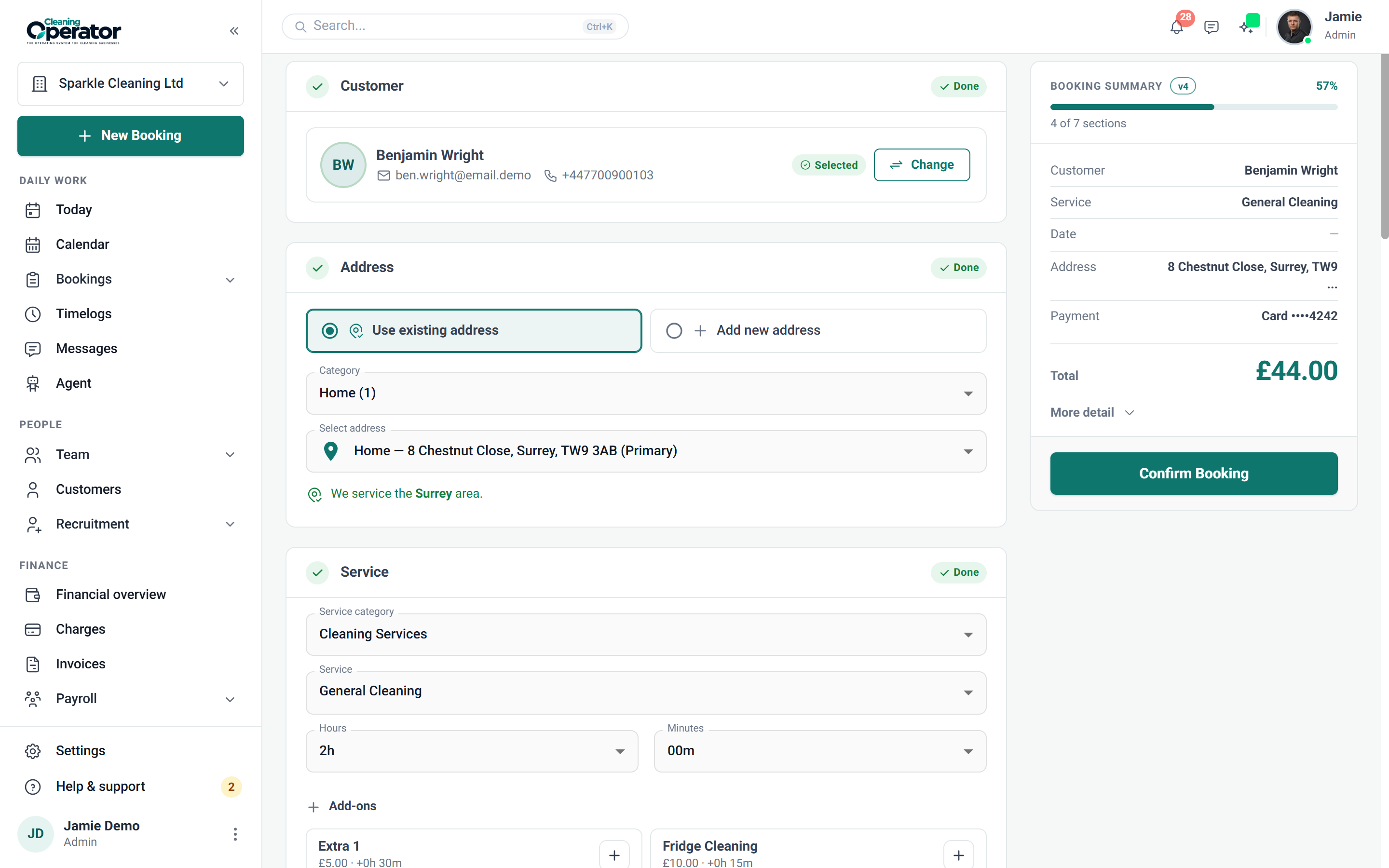
    Lets office staff create or edit a booking for a customer: find or add the customer, pick the service, extras, date and time, assign cleaners and take payment.

    The problem

    Taking a booking over the phone means juggling a notebook, a price list and the diary at once.

    With Cleaning Operator

    Book the whole job before the customer hangs up. One form handles the customer, service, extras, time, cleaners and payment.

    • Staff can search for an existing customer or add a new one
    • Smart or Manual cleaner assignment, with duration and price overrides (each with an optional reason)
    • Desktop shows a form with a live summary; mobile shows a stepper
    Screenshot of Bookings — Admin booking form
  2. Public booking form

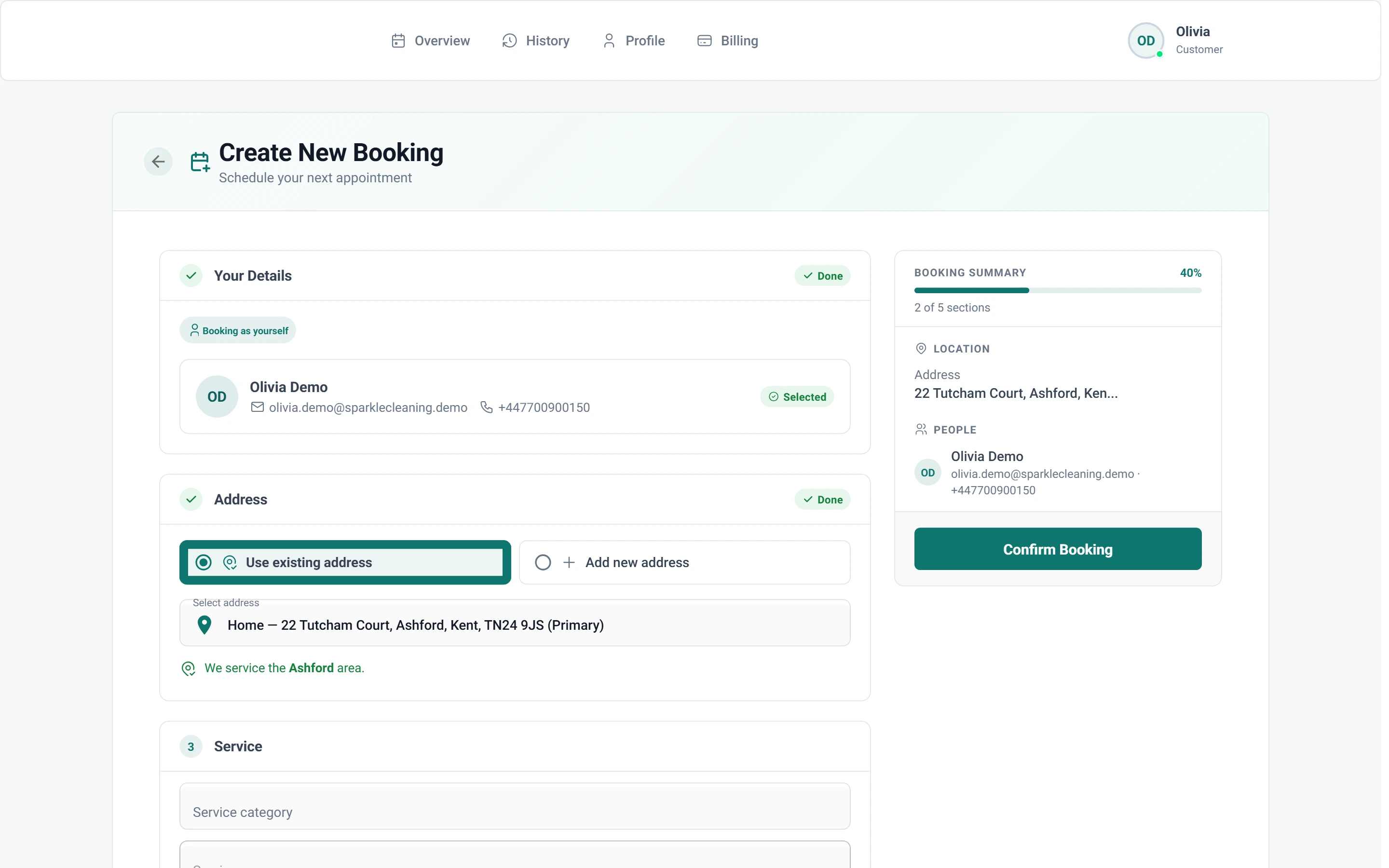
    A booking form anyone can open from a link without logging in, so new and returning customers can book.

    The problem

    New customers message at 10pm wanting a slot, and by morning they've booked someone else.

    With Cleaning Operator

    New customers book whenever they're ready, from a link with no login. They choose the service and time, and add their address and payment.

    • Visitor steps: Your Details → Address → Service → Requirements (if any) → Schedule → Payment & Details
    • Shared by link or embedded on your website
    • If public booking is switched off, visitors see that booking is unavailable
  3. Customer portal booking form (self-service)

    Logged-in customers book their own visits from the customer portal, with a shorter form because their name and saved addresses are already known.

    The problem

    Regulars text me to book another clean, and I retype their address every single time.

    With Cleaning Operator

    Regulars book their next clean from their own portal, with name and addresses already saved. They pick the service, extras, time and payment.

    • Same style of steps as the public form: service, extras, schedule, payment
    • If create-booking is switched off, the customer sees 'Booking Unavailable' and a message to contact you
    • If Default New Bookings to Unassigned is on, they wait for you to assign a cleaner
    Screenshot of Customer portal — New booking
  4. Embeddable booking widget

    Puts the same public booking form on your own website, in a frame that resizes to fit.

    The problem

    My website only shows a phone number, so visitors leave for a company they can book online.

    With Cleaning Operator

    Visitors book without leaving your website. Paste in the embed code and your public booking form appears in a frame that resizes to fit.

    • Get Embed Code from Settings → Customer Portal → Booking Form Settings
    • Uses the same public booking settings as the public form
    • Taking cards in the widget needs the payment permission in the browser
  5. Services on the booking form

    Customers and staff pick from the same service catalogue, with hourly or flat-rate pricing that updates as they book.

    The problem

    Customers see one price online, then get quoted a different one when they ring the office.

    With Cleaning Operator

    The same price shows whoever takes the booking, because office and customers pick from one service list. Hourly or flat-rate, it updates as they book.

    • Hourly services: hours and minutes within your min and max; price updates live
    • Flat-rate services: fixed duration and flat (or weekend) price
    • Industry is picked first when you have more than one
  6. Extras (add-ons)

    Optional add-ons such as an oven clean or extra hours, each adding price and/or time to the booking.

    The problem

    Inside the fridge gets added as an afterthought, then never reaches the bill or the cleaner's timings.

    With Cleaning Operator

    Add-ons go on the booking, so they reach the bill and the job. Extras appear once the service is picked, adding price, time or both.

    • Extras linked to the chosen service appear once the service is picked
    • Optional quantity with a minimum and maximum
    • Existing bookings keep the original extra name and price if an extra is later changed or removed
  7. Service requirements (custom questions)

    Extra questions that appear only for certain services, such as number of bedrooms, property type or pets.

    The problem

    Cleaners turn up to find four bedrooms instead of two, or a dog nobody mentioned.

    With Cleaning Operator

    Details like bedrooms and pets are on the booking before anyone arrives. A service can ask its own questions, and required ones must be answered.

    • A Requirements step appears automatically when the service has questions
    • Required questions must be answered before the booker can continue
    • Answers are stored on the booking
  8. Schedule, availability and repeating jobs

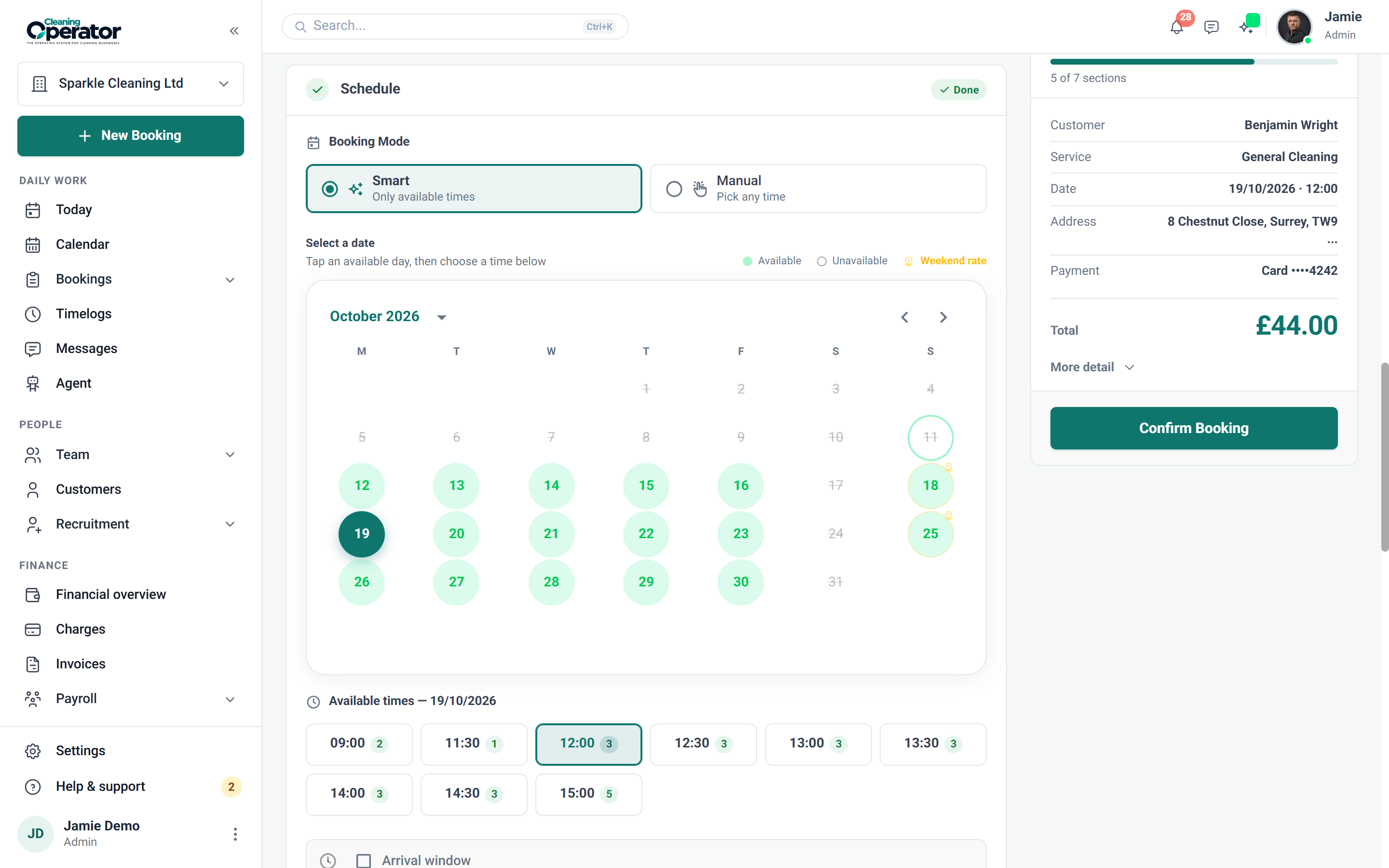
    Sets when a job happens and whether it repeats; in Smart mode, times with no free cleaner are hidden.

    The problem

    Fortnightly regulars live in my head, and new customers keep booking slots I have nobody free for.

    With Cleaning Operator

    Customers only see slots you can cover, because Smart mode hides times with no free cleaner. Regular cleans repeat weekly, fortnightly, monthly and more.

    • One-time, or weekly, bi-weekly, every 3 weeks, every 4 weeks, every 8 weeks, monthly, every 2 months, quarterly or yearly, as allowed for the service
    • Optional arrival window instead of a single clock time
    • Recurring discounts set on the service apply automatically to matching frequencies
  9. Cleaner assignment on a booking

    Puts one or more cleaners on a job, either by Smart suggestion or by manual choice.

    The problem

    Finding who's free on Thursday afternoon means checking three diaries and a group chat.

    With Cleaning Operator

    Fill a job without checking three diaries. Smart mode suggests cleaners who are free for the whole duration, or you pick one or more yourself.

    • Smart: the system suggests cleaners who are free for the duration
    • Manual: you pick the cleaners yourself
    • Customers see first name, last name, profile photo, or nothing, as set by Assigned Cleaner Details
  10. Payment choice on the booking form

    The booker chooses how they will pay: cash, card, or both, depending on your Customer Portal settings.

    The problem

    Nobody says how they'll pay until after the visit, then I'm chasing card details by text.

    With Cleaning Operator

    Payment is agreed before the clean, not chased after it. Customers choose cash or card while booking, and staff can send an add-card link or invoice.

    • Customers can choose Cash and/or Card; a saved card can be used or a card added during booking
    • Admin-only options add Card request (customer gets an add-card link) and Invoice
    • Card needs Stripe connected; cash can be marked paid after the visit
  11. Booking notes and checklists on create

    Staff add notes while creating a booking and can choose which checklist applies to that job.

    The problem

    Door codes and pet instructions get buried in WhatsApp, so cleaners ring me from the doorstep.

    With Cleaning Operator

    Access notes and pet instructions reach your cleaners on the day. Add them while booking, and choose which checklist applies to that job.

    • Special instructions reach the cleaner on the day
    • Staff can override the checklists for this job
    • Default checklists are set under Settings → Checklists
  12. Customer cancel

    Lets a logged-in customer cancel their own booking, within the notice rules you set.

    The problem

    Cancellations arrive by text at 11pm, too late to fill the slot, and I clear the diary by hand.

    With Cleaning Operator

    Customers cancel in their own portal, within your rules. You decide whether they can, and set a minimum notice of up to a week.

    • Cancel Bookings is a master on/off switch for customers
    • Optional minimum cancellation notice: Hours before booking, 1–168 hours
    • For repeating jobs the customer may be asked whether this visit or future visits are included
  13. Customer reschedule

    Lets a logged-in customer move a booking to a new date and time, and change other details if you allow it.

    The problem

    Moving a regular's weekly clean takes four texts and a phone call to find a time that works.

    With Cleaning Operator

    Regulars move their own clean in the portal, without the back-and-forth. You choose whether they can also change service, duration, frequency or extras.

    • Separate switches for Allow Service Change, Allow Duration Change, Allow Recurrence Change and Allow Extras Change
    • Optional minimum reschedule notice, with Hours before booking set from 1–168 hours
    • Inside the notice window, those change permissions are blocked
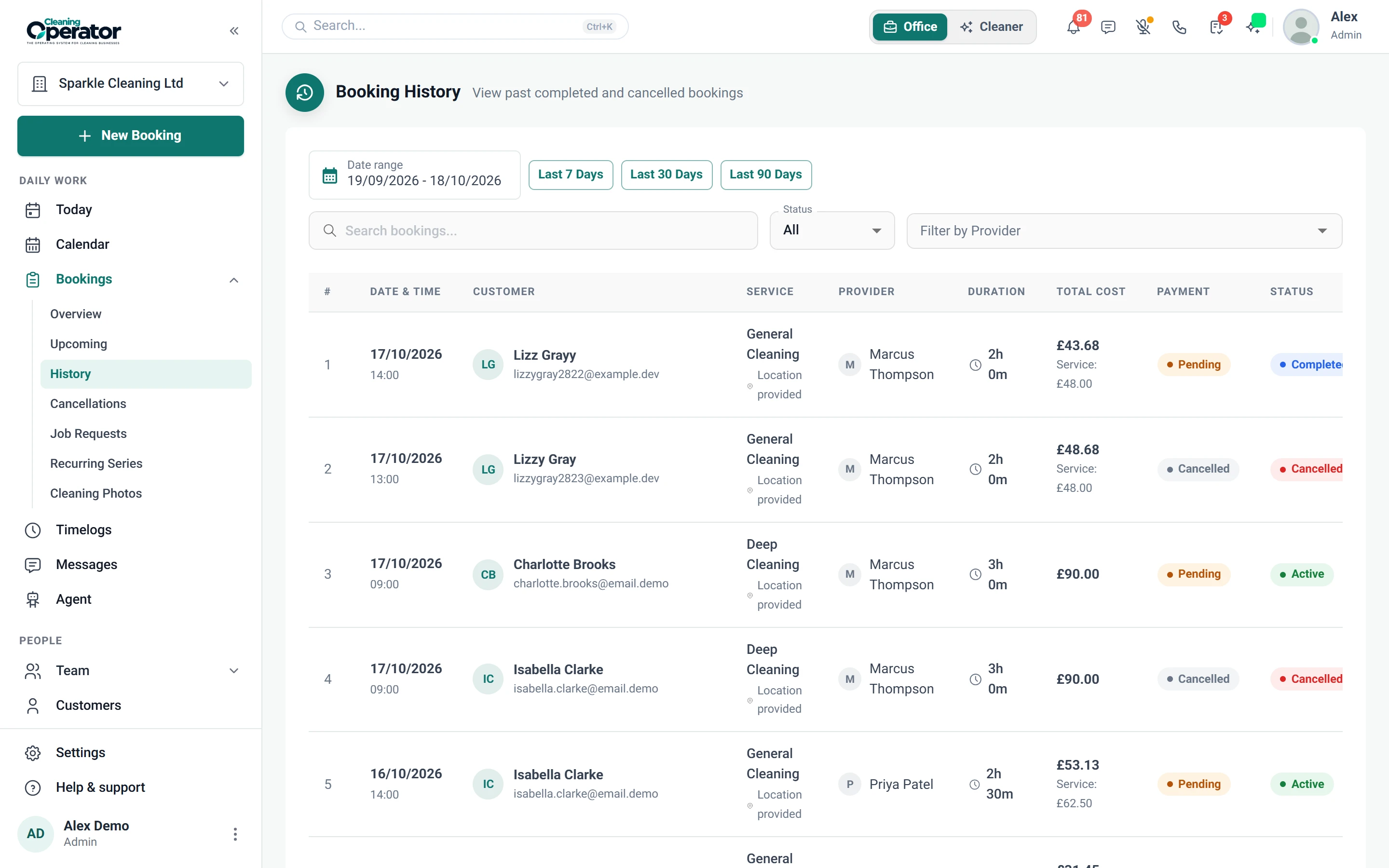
  14. Booking lists (admin)

    Office lists of work, separate from the booking form, for finding jobs by status or type.

    The problem

    Last Tuesday's clean gets queried, and I'm scrolling back through texts to work out who went.

    With Cleaning Operator

    Any past job is a click away. Open it from History to see who went, plus notes, payment, checklists and photos.

    • Overview, Upcoming, History, Cancellations, Job Requests, Recurring Series, Charges, Timelogs, Cleaning Photos and Export
    • Open any booking to see the booking details panel: customer, address, cleaners, payment, notes, checklists and photos
    • Exporting bookings needs the Enterprise plan (see Booking export)
    Screenshot of Bookings — History
  15. Terms of service on booking

    An extra booking step where the customer must read and accept your terms before the booking is confirmed.

    The problem

    When a customer argues about my cancellation policy, I can't show they ever agreed to it.

    With Cleaning Operator

    Acceptance of your terms is recorded on the booking. Switch the step on, and customers must accept before their booking is confirmed.

    • Turn on Require terms acceptance during booking under Customer Portal → Booking Form Settings
    • Set a title (the heading) and the terms body as formatted text
    • Acceptance is recorded on the booking

Win more work

More ways to win work.

04 — Reviews

Reviews: See Reviews features

Ask for a rating after the visit, then point happy customers to Google.

  • Review request and public review page

Start today

Run the whole cleaning company from one system.

Online booking, the live team calendar, the mobile app, card payments and invoices, and payroll from clocked hours.

14-day free trial on every plan. Cancel anytime, no lock-in contract.